
AI Model Resource
An AI Model connection is a set of connection parameters needed to connect to an artificial intelligence provider, i.e. the company running the Large Language Model (LLM) which will be used to power an AI Agent task.
This connection can be stored in two ways:
related to the object which is going to use it (Custom source option)
as a Rulex Platform Resource of AI Model type (Saved source option), which can be used at any time and in any operation.
If this connection is stored as an AI Model resource, the user can define a set of permissions linked to this resource (as explained in the permissions page) to limit/control the access other users can have on the inserted connection.
To use an AI Model resource in any panel, an AI Model connection is required, and the user must have view permissions set to allow on the resource itself, while modify permissions are required to see its internal parameters.
Tip
By creating an AI Model resource with view permissions for all users and modify permission only for the administrator, you are exposing a connection without sharing the API keys and the other sensitive parameters used to authenticate to the provider.
AI Model connection configuration
Rulex Platform supports the following AI providers:
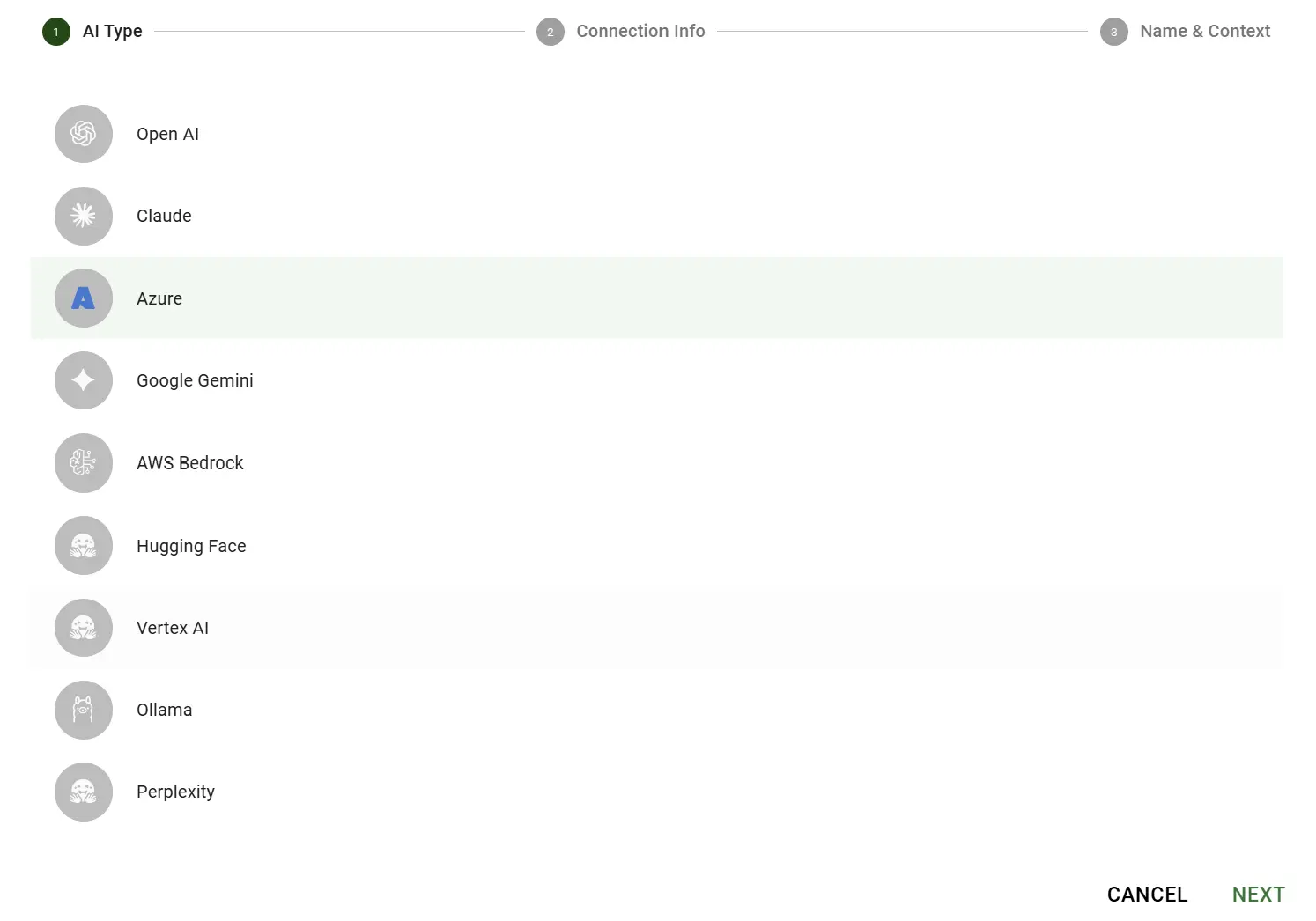
The configuration interface and its connection parameters vary for every AI provider. In the tables below, mandatory parameters are reported in bold; if an optional parameter is left empty, the provider’s default behavior is used.
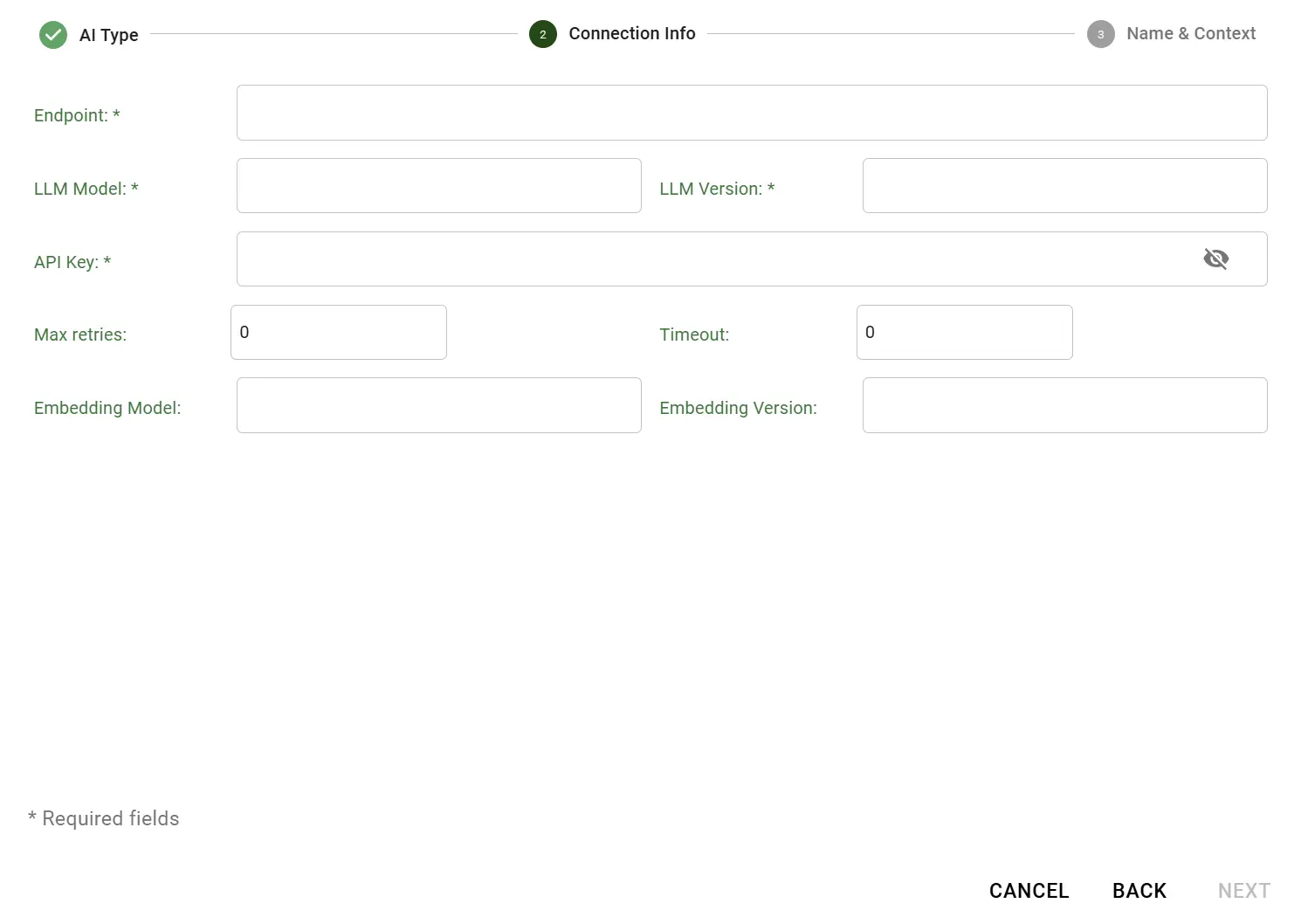
OpenAI
Name |
Description |
|---|---|
API Key |
The secret key used to authenticate to the OpenAI API. |
LLM Model |
The OpenAI language model to use for the agent (e.g. |
Temperature |
See the common parameters section. |
Max tokens |
See the common parameters section. |
Max Retries |
See the common parameters section. |
Timeout |
See the common parameters section. |
Endpoint |
A custom endpoint, used when calling an OpenAI-compatible API different from the public OpenAI one. |
Organization ID |
The identifier of the OpenAI organization to associate with the requests. |
Embedding Model |
The model used to compute the embeddings needed to enable context (RAG). |
Claude
Name |
Description |
|---|---|
API Key |
The secret key used to authenticate to the Claude API. |
LLM Model |
The Claude language model to use for the agent. |
Temperature |
See the common parameters section. |
Max tokens |
See the common parameters section. |
Max Retries |
See the common parameters section. |
Timeout |
See the common parameters section. |
Endpoint |
A custom endpoint, used when calling a Claude-compatible API different from the public one. |
Protocol |
Since Claude does not expose an embedding model, this parameter allows selecting an embedding model belonging to a different provider, so that context (RAG) can still be enabled. |
Azure
Name |
Description |
|---|---|
Endpoint |
The Azure OpenAI resource endpoint URL. |
LLM Model |
The name of the deployed Azure OpenAI language model to use for the agent. |
LLM Version |
The API version of the chosen deployment. |
API Key |
The secret key used to authenticate to the Azure OpenAI resource. |
Temperature |
See the common parameters section. |
Max tokens |
See the common parameters section. |
Max Retries |
See the common parameters section. |
Timeout |
See the common parameters section. |
Embedding Model |
The name of the deployed embedding model, needed to enable context (RAG). |
Embedding Version |
The API version of the chosen embedding deployment. |
Google Gemini
Name |
Description |
|---|---|
API Key |
The secret key used to authenticate to the Google Gemini API. |
LLM Model |
The Google Gemini language model to use for the agent. |
Temperature |
See the common parameters section. |
Max tokens |
See the common parameters section. |
Max Retries |
See the common parameters section. |
Timeout |
See the common parameters section. |
Embedding Model |
The model used to compute the embeddings needed to enable context (RAG). |
Amazon Bedrock
Name |
Description |
|---|---|
Secret Access Key |
The AWS secret access key used to authenticate to the Amazon Bedrock service. |
Access Key ID |
The AWS access key identifier used to authenticate to the Amazon Bedrock service. |
LLM Model |
The Amazon Bedrock language model to use for the agent. |
Region |
The AWS region hosting the Amazon Bedrock service. |
Session Token |
The AWS temporary session token, needed when authenticating with temporary security credentials. |
Temperature |
See the common parameters section. |
Max tokens |
See the common parameters section. |
Max Retries |
See the common parameters section. |
Timeout |
See the common parameters section. |
Embedding Model |
The model used to compute the embeddings needed to enable context (RAG). |
Vertex AI
Name |
Description |
|---|---|
API Key |
The secret key used to authenticate to the Vertex AI API. |
LLM Model |
The Vertex AI language model to use for the agent. |
Project |
The identifier of the Google Cloud project owning the Vertex AI resources. |
Temperature |
See the common parameters section. |
Max tokens |
See the common parameters section. |
Max Retries |
See the common parameters section. |
Timeout |
See the common parameters section. |
Location |
The Google Cloud region where the Vertex AI resources are deployed. |
Embedding Model |
The model used to compute the embeddings needed to enable context (RAG). |
Hugging Face
Name |
Description |
|---|---|
API Key |
The secret key used to authenticate to the Hugging Face API. |
LLM Model |
The Hugging Face language model to use for the agent. |
Provider |
The Hugging Face inference provider hosting the chosen model. |
Temperature |
See the common parameters section. |
Max tokens |
See the common parameters section. |
Embedding Model |
The model used to compute the embeddings needed to enable context (RAG). |
Perplexity
Name |
Description |
|---|---|
API Key |
The secret key used to authenticate to the Perplexity API. |
LLM Model |
The Perplexity language model to use for the agent. |
Max Retries |
See the common parameters section. |
Timeout |
See the common parameters section. |
Temperature |
See the common parameters section. |
Max tokens |
See the common parameters section. |
Search Mode |
Restricts the Perplexity web search performed by the model to a specific search mode. |
Search Recency Filter |
Limits the Perplexity web search results to a specific recency window (e.g. day, week, month). |
Protocol |
Since Perplexity does not expose an embedding model, this parameter allows selecting an embedding model belonging to a different provider, so that context (RAG) can still be enabled. |
Ollama
This connection allows Rulex Platform to connect to Ollama, which supports running models locally.
Name |
Description |
|---|---|
LLM Model |
The name of the local Ollama language model to use for the agent. |
Temperature |
See the common parameters section. |
Max tokens |
See the common parameters section. |
Endpoint |
The endpoint of the Ollama server, needed if it is not reachable at the default local address. |
Embedding Model |
The model used to compute the embeddings needed to enable context (RAG). |
Common connection parameters
The following optional parameters are shared, when available, among the different AI providers:
Name |
Description |
|---|---|
Temperature |
Controls the randomness and creativity of the model’s responses. Lower values, closer to |
Max tokens |
Sets the maximum length of the model’s response, measured in tokens. This limits how long the generated output can be: if the model reaches this limit, its response is cut off. |
Timeout |
Defines the maximum amount of time, usually in seconds, that the system waits for a response from the provider before considering the request failed. |
Max Retries |
Sets how many times the system automatically retries sending a request to the provider if it initially fails, for example due to a temporary network issue or a rate limit. |
Adding a context (RAG)
If an Embedding Model is configured, it is possible to add one or more contexts to an AI Model connection. A context is a knowledge base built from the user’s own documents, which the agent can search through to give more accurate and relevant answers, a technique known as Retrieval Augmented Generation (RAG): instead of relying only on the information learnt during its training, the agent can also retrieve the relevant information from the documents provided in the context.
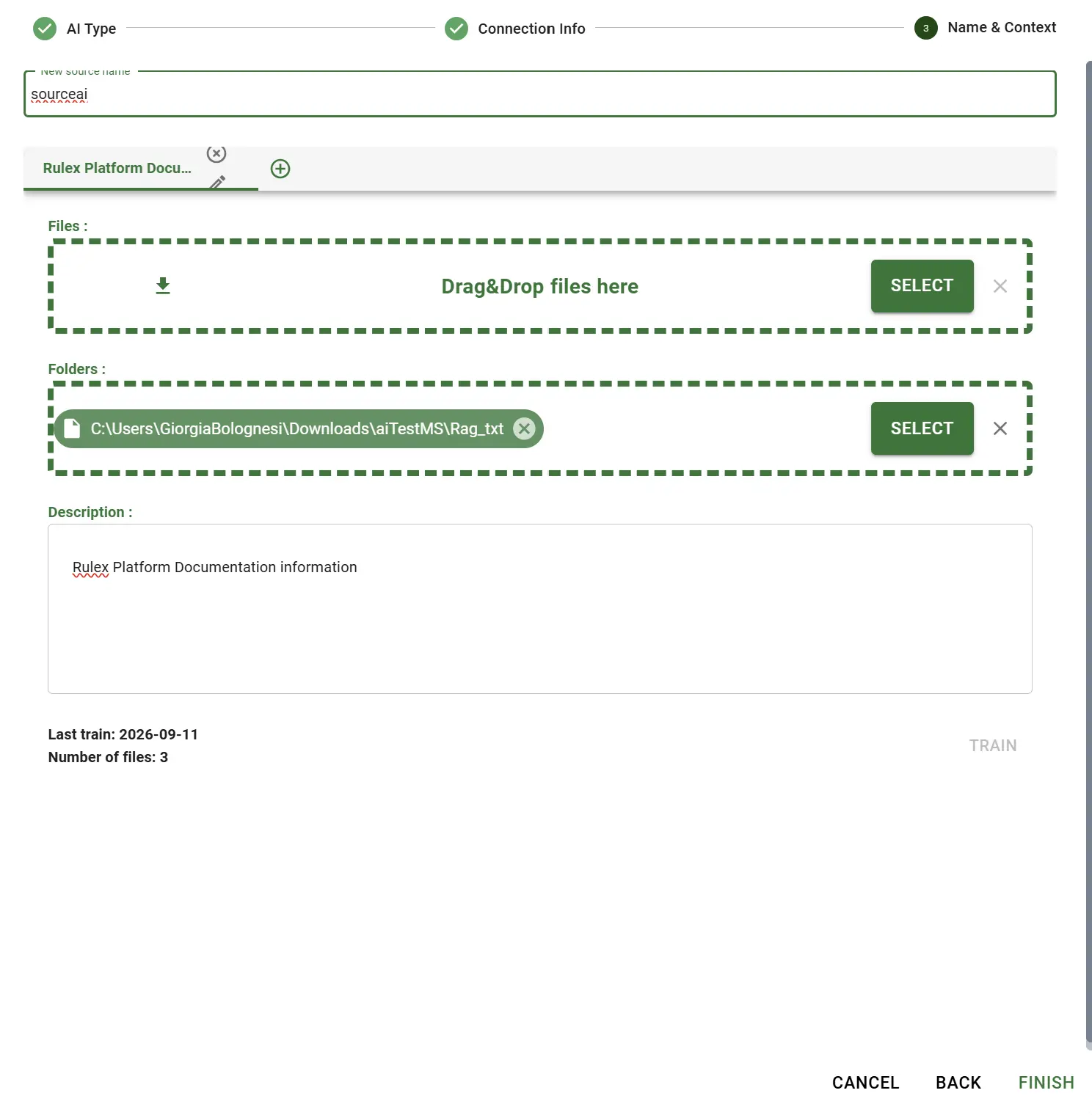
To add a context:
Procedure
Click on the Context box, then click on the Plus button to add a new context.
Insert a unique Name and a Description for the context, so that the same connection can handle multiple contexts.
Add one or more Files or Folders. Supported formats are plain text, HTML, PDF and CSV files. If a folder is selected, the system automatically goes through all the files inside it, including any subfolders, and loads every file in a supported format.
Click Train: the files’ content is read and broken down into smaller pieces, so that the model can search through them efficiently. Once finished, the Last train date and the number of files found are displayed.
Repeat the previous steps to add as many contexts as needed.
The Last train date and the number of files found are then displayed.
Whenever the agent needs information contained in a context, it calls a dedicated tool to retrieve it.
Using an AI Model resource
To create an AI Model resource, you need to open the Explorer panel (for more information refer to this page) and follow this:
Procedure
Click the Explore Resources icon to open the Explorer panel.
Deactivate the primary resource filter by toggling off the Primary filter on the upper right side of the Explorer panel to add general resources.
Hover the mouse over the Plus button.
Select Add New AI Model and a dedicated window will appear on the screen.
Select the AI type you want to connect to (see supported providers).
Configure the connection parameters following this guide. A test connection can be performed; if unsuccessful, the error returned is displayed at the bottom of the window with the possibility to continue anyway.
If an Embedding Model has been configured, you can optionally add a context to the resource.
Insert a unique name for the new resource.
Click Create: the new AI Model resource will now be added to the list.
Once saved, the AI Model resource can be selected inside any AI Agent task by choosing the Saved connection option: the task will automatically apply the connection settings, and, if configured, rely on the trained context, without the need to re-enter any provider detail.
See also
For more information about how an AI Model connection is used inside a flow, see the AI Agent task page.