
Merge Structures
The Merge Structures task merges datasets, results, rules or branch variables coming from different flow branches into a unique one.
Its layout is made of only one tab, the Options tab.
The Options tab
The Options tab is made of four areas:
The Structures to be merged area,
The Dataset area,
The Rules area,
The Branch variables area.
The Structures to be merged area
In this section, all the supported data structures are listed.
The following data structures are supported, and can be checked to perform the merge operation:
Dataset
Results
Rules
Branch variables
The Dataset area
In the Dataset area, users can set up how the dataset structure will be merged through the following options:
Concatenation type: select from the drop-down list the required concatenation type. Available options are:
Outer (default)
Inner
Match column by: select from the drop-down list how columns will be matched, by Name (default value) or by Position.
The Rules area
In the Rules area, users can set up how the rules structure will be merged using the following options:
Merge type: select from the drop-down list the required concatenation type. Available options are:
Outer (default)
Inner
Sort rules: if selected, rules will be re-arranged in standard way.
The Branch variables area
In the Branch variables area, users set up how the branch variables will be merged by selecting the Concatenation type: the available values are All (default) and Distinct.
By choosing All, all the branch variables will be merged, so if there are two branch variables with the same name, they both will be kept, while by choosing Distinct, only the branch variable coming from the first branch linked to the Merge Structures task.
Note
When merging results, all the results of the branches involved will be merged, not only those generated by the task directly linked to the Merge Structures task.
See also
Only CODE branch variables merge options can be customized, as branch tokens are always merged by their distinct values, according to their origin.
Warning
Always remember to save and compute the task.
Example
The following example uses the Go to work rules dataset.
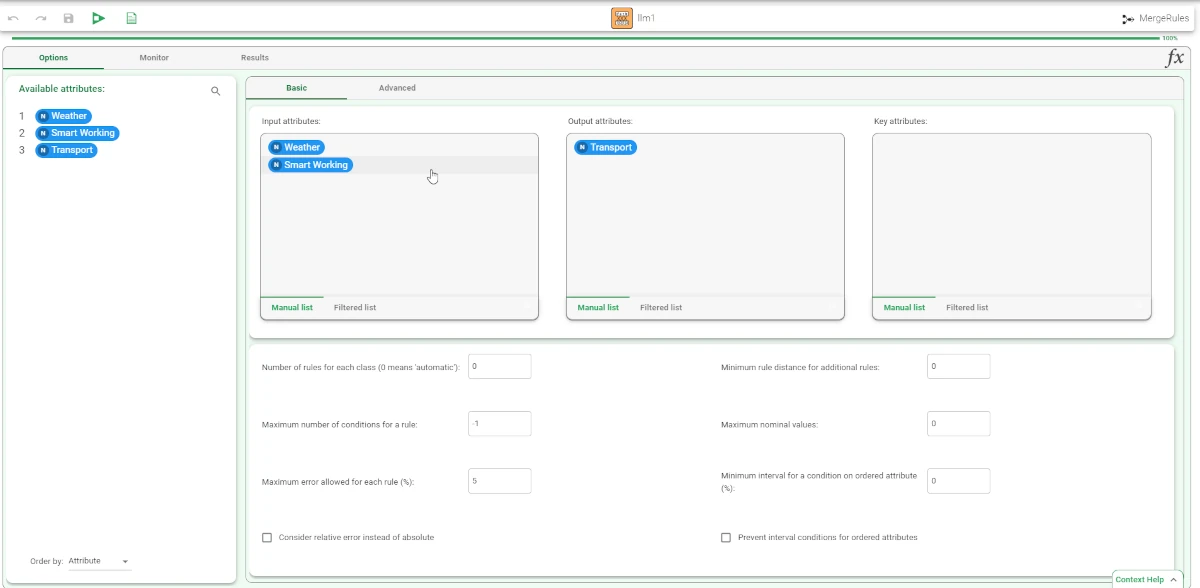
After having imported the dataset via an Import from Excel file task, add an LLM Classification task. Configure the task as follows:
Input attributes: Weather, Smartworking
Output attributes: Transport
Connect the Import from Excel file task to a Data Manager.
Open the Data Manager and change the Role of Transport attribute to Output.
Save and compute the task.

Add a Merge Structures task to the flow and link the LLM Classification task and the Data Manager tasks to it.
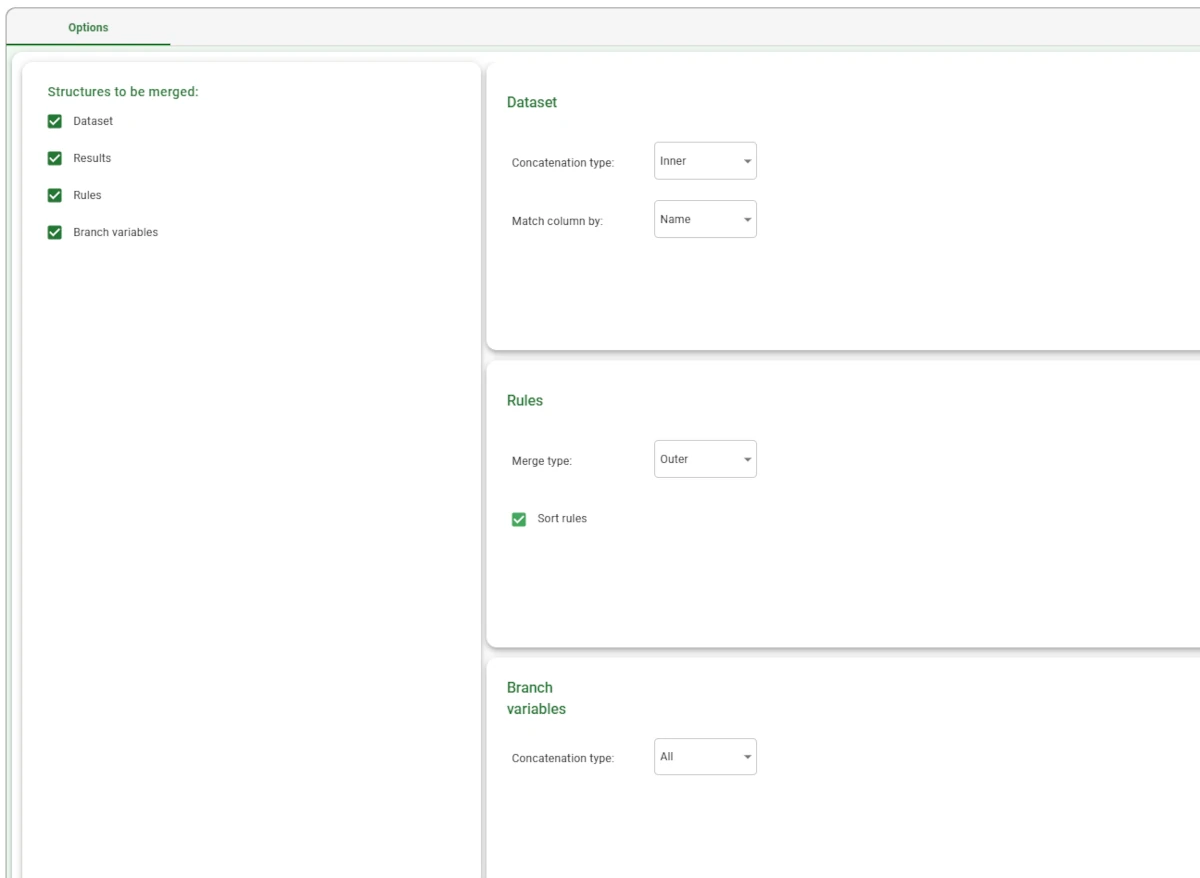
Open the Merge Structures task and configure it as follows:
Select all the values in the Structures to be merged area.
In the Dataset area, set the Concatenation type to Inner and the Match column by to Name.
In the Rules area, set the Merge type to Outer and select the Sort rules checkbox.
In the Branch variables area, set the Concatenation type to All.
Save and compute the task.
To visualize the output dataset, add a Data Manager task to the flow and link it to the Merge Structures task.
To visualize the output ruleset, add a Rule Manager task to the flow and link it to the Merge Structures task.
To visualize the output results, add a Convert Structure to Dataset task to the flow and link it to the Merge Structures task and compute it. Then, add a Data Manager to visualize the results.