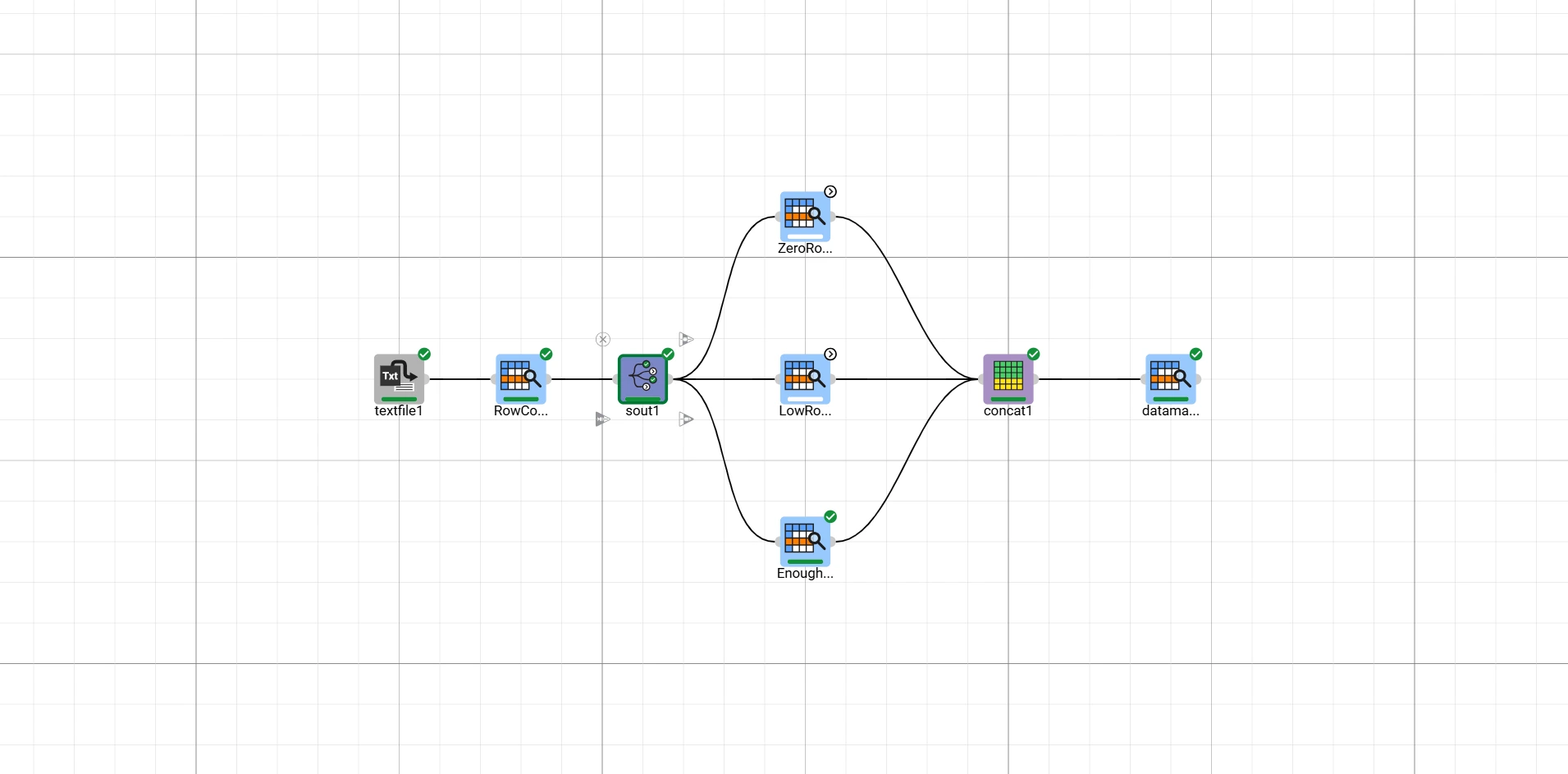
Select outputs task
The Select Outputs task allows you to conditionally compute all or some of its outgoing tasks. Unlike the If-Else task, a condition can be imposed separately for each output task.
It is important to note that the conditions affect the computation behavior but not the data propagation. As always in Rulex Factory, any computed child receives all the preceding data structures flowing into the wire.
The tasks belonging to output branches that are not selected by the task for the current computation are moved to the Skipped State. A skipped task is not considered in the current computation, does not own data, and does not forward data to its child tasks. The behavior of tasks with multiple parents — some computed and some skipped — is controlled by the flow Skip policy. This policy also controls the behavior of the Import from Task task when importing data from skipped sources.
Its layout consists of a single tab, the Options tab.
Attention
The configuration of several options in this task relies on the names of the output tasks. Remember to connect the outgoing tasks before opening the task configuration to properly populate the drop-down menus.
The Options tab
The Options tab is divided into two regions. In the upper section, a list of drop-down menus and checkboxes allows you to configure the general behavior of the task. This panel contains the following options:
Else task: this is the branch executed if all the provided conditions evaluate to False. It cannot coincide with any output task on which a condition is imposed.
- Logical operator to be used in multi-row conditions: the result of each condition must be a single
TrueorFalsevalue. If the inserted condition evaluates to a vector (for example, by using non-constant attributes), this is the operator used to aggregate the result. By default, the final value will be the and of all entries in the vector.
- Logical operator to be used in multi-row conditions: the result of each condition must be a single
Compute tasks without specified condition: specifies what to do for branches connected to the task that are selected neither as conditional nor as else tasks. If checked, all such branches are still computed; otherwise, they are always skipped.
Compute only the first verified task: when multiple conditions are defined on output tasks, this option causes the system to stop evaluation at the first condition that is true, automatically setting the rest to
False. The order used for evaluation is the order in which the tabs are presented in the Rule Controller panel.
The bottom section is occupied by the rule selector and allows you to configure the condition for all outgoing branches.
By clicking the Plus icon you can add a condition for an outgoing task. Once pressed, a popup appears to guide you in selecting the outgoing task whose execution you want to conditionally control. This list is stripped of the outgoing task selected as the possible Else Task to prevent name conflicts.
The list is also stripped of any outgoing task for which a condition has already been set. In general, all tabs presented here must have a different header name.
The condition for any task is defined using the Rule controller present in the tab below. For its description, which is shared with the If-Else task, please refer to this section.
Example
The following example uses the Adult dataset.
In this example, after importing the dataset, I want to notify the user if an incoming dataset has zero rows. Moreover, if the number of rows is less than
10, I want to add rows up to10.Add a Select Outputs task to the flow. Add three outgoing Data Manager tasks named ZeroRows, LowRows, and EnoughRows, and connect them in this order to the Select Outputs task as child tasks. Then, set the following options: * Select EnoughRows as the Else task. * Check Compute only the first verified task.
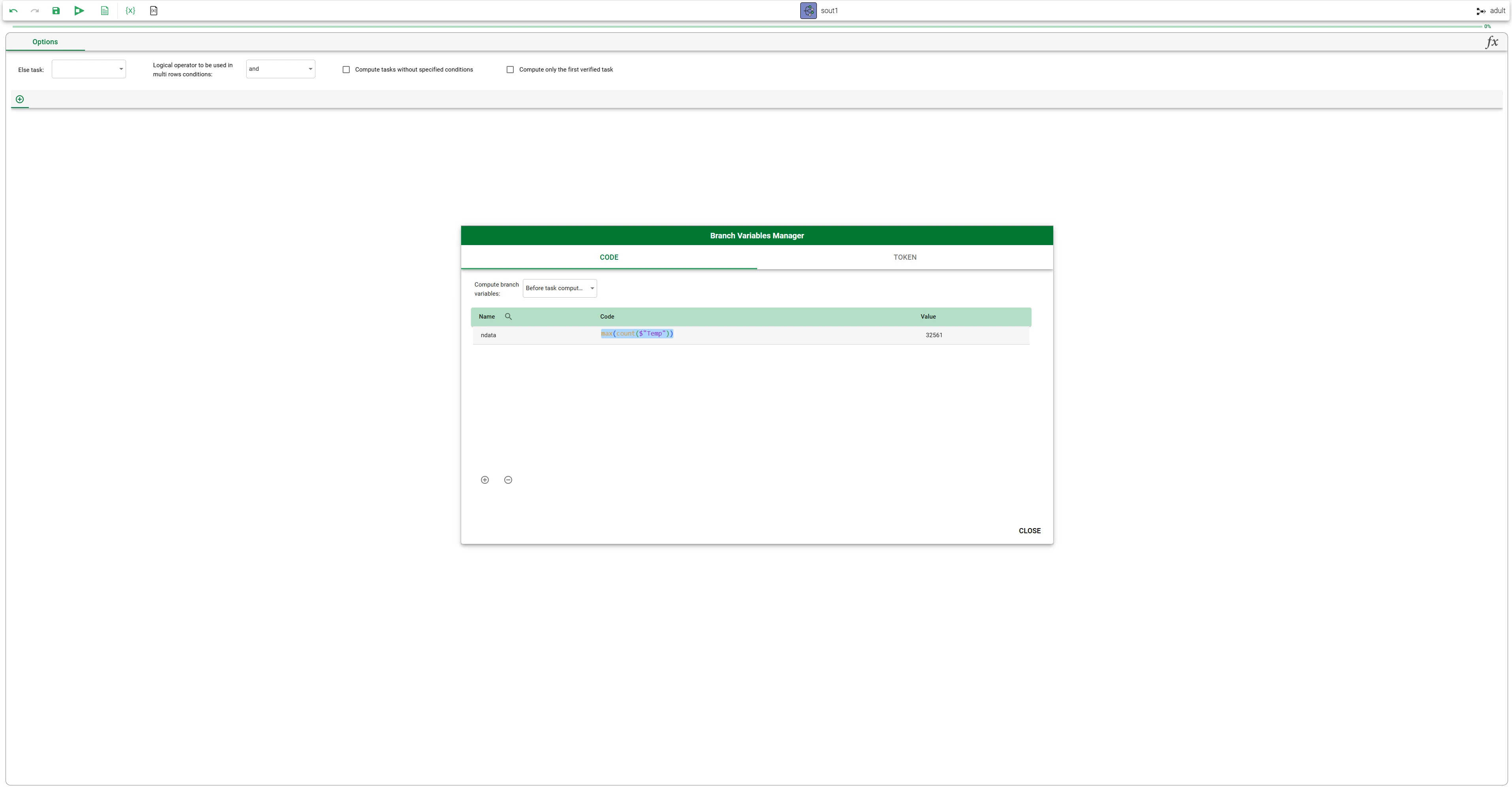
Open the Branch Variables Manager to add a branch variable with the following code:
max(count($"Temp")), where$"Temp"is a temporary column — filled entirely withNonevalues — added to the incoming dataset of the Select Outputs task. Name this branch variablendata.
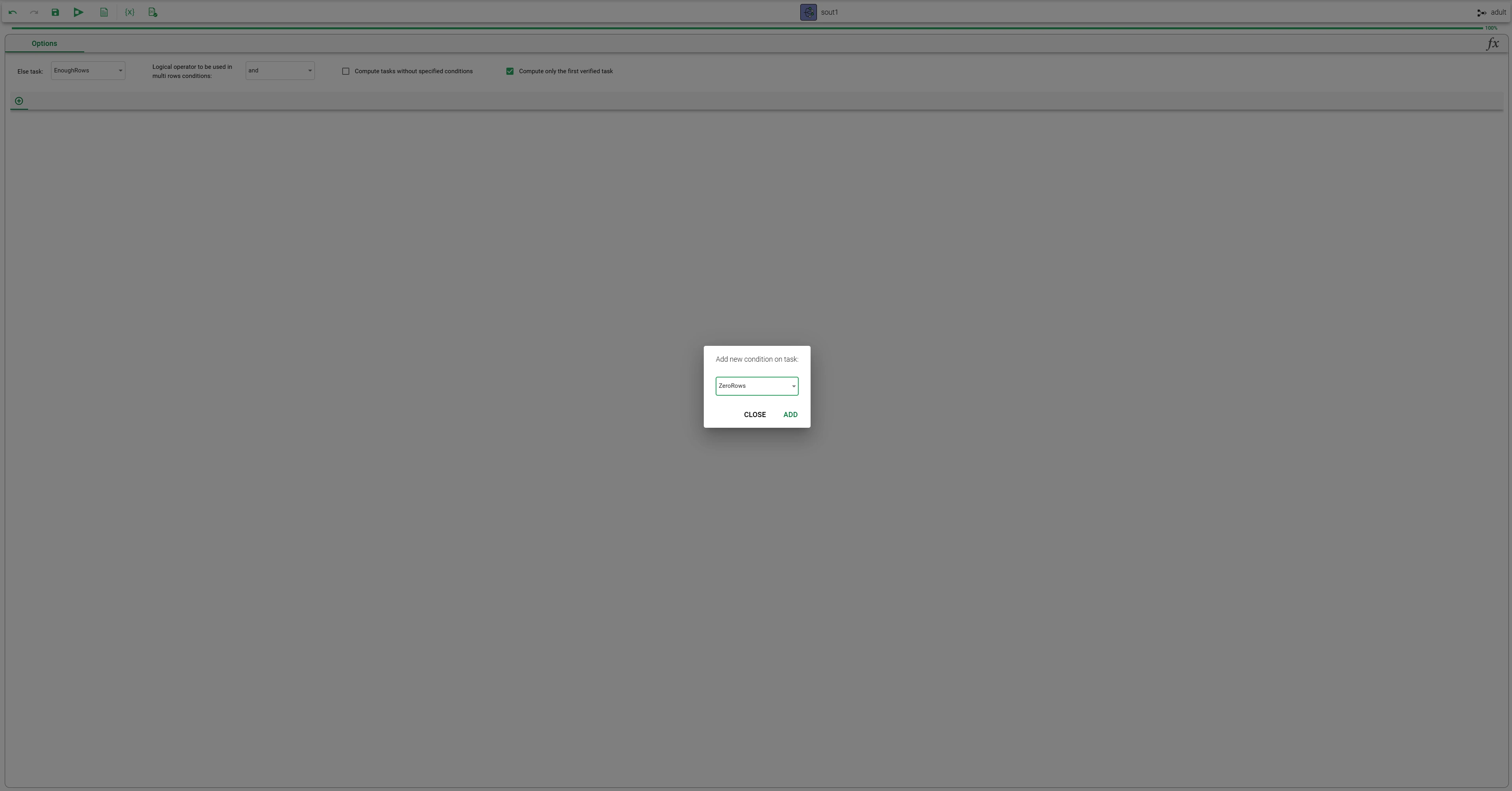
In the Rule selector below, click the Plus button and from the appearing pop-up select the outgoing task ZeroRows and click Add.
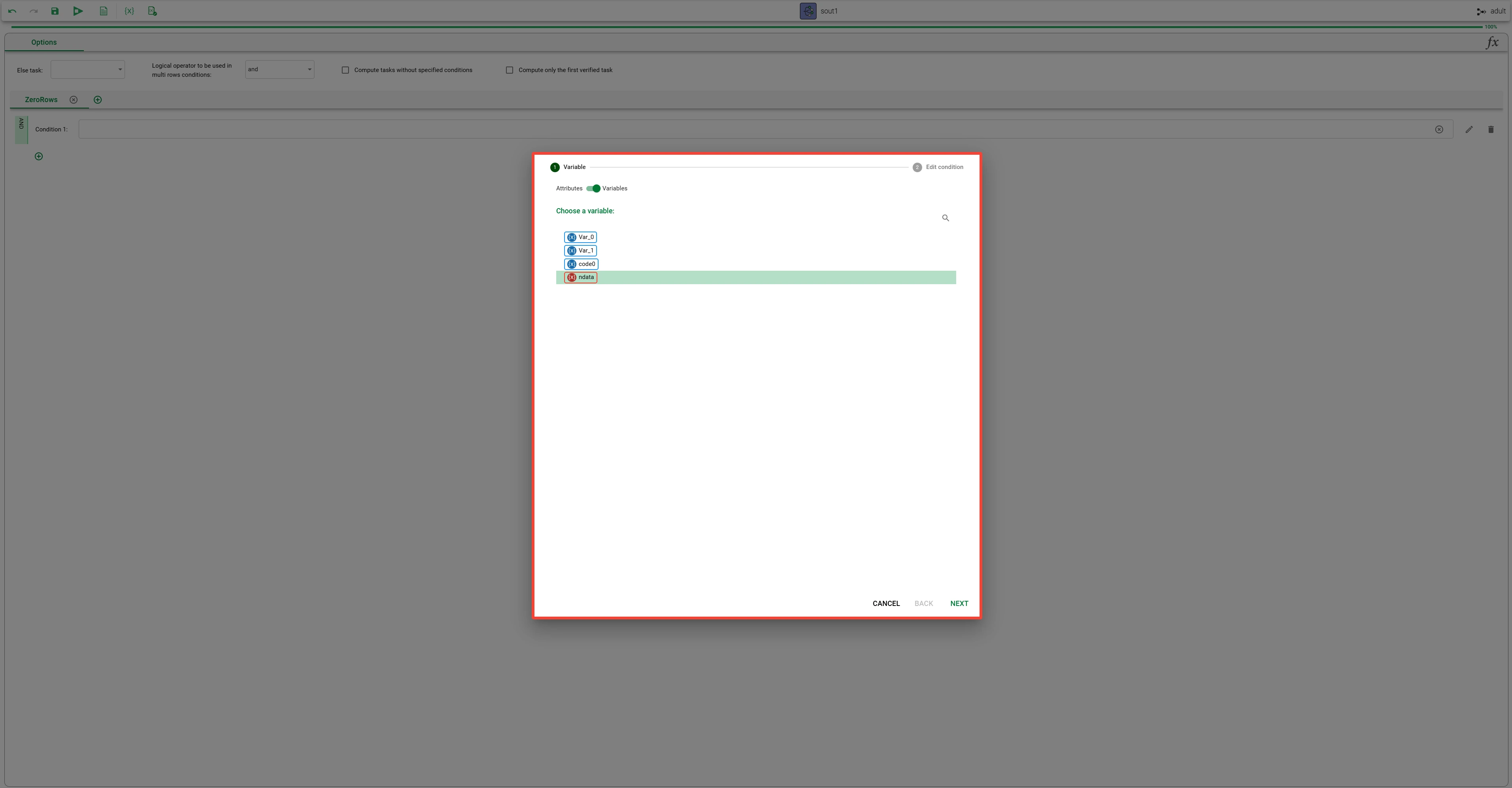
In the added tab, click the Plus button to add a condition row. Then press the Edit icon at the end of the condition row to open the Condition Wizard.
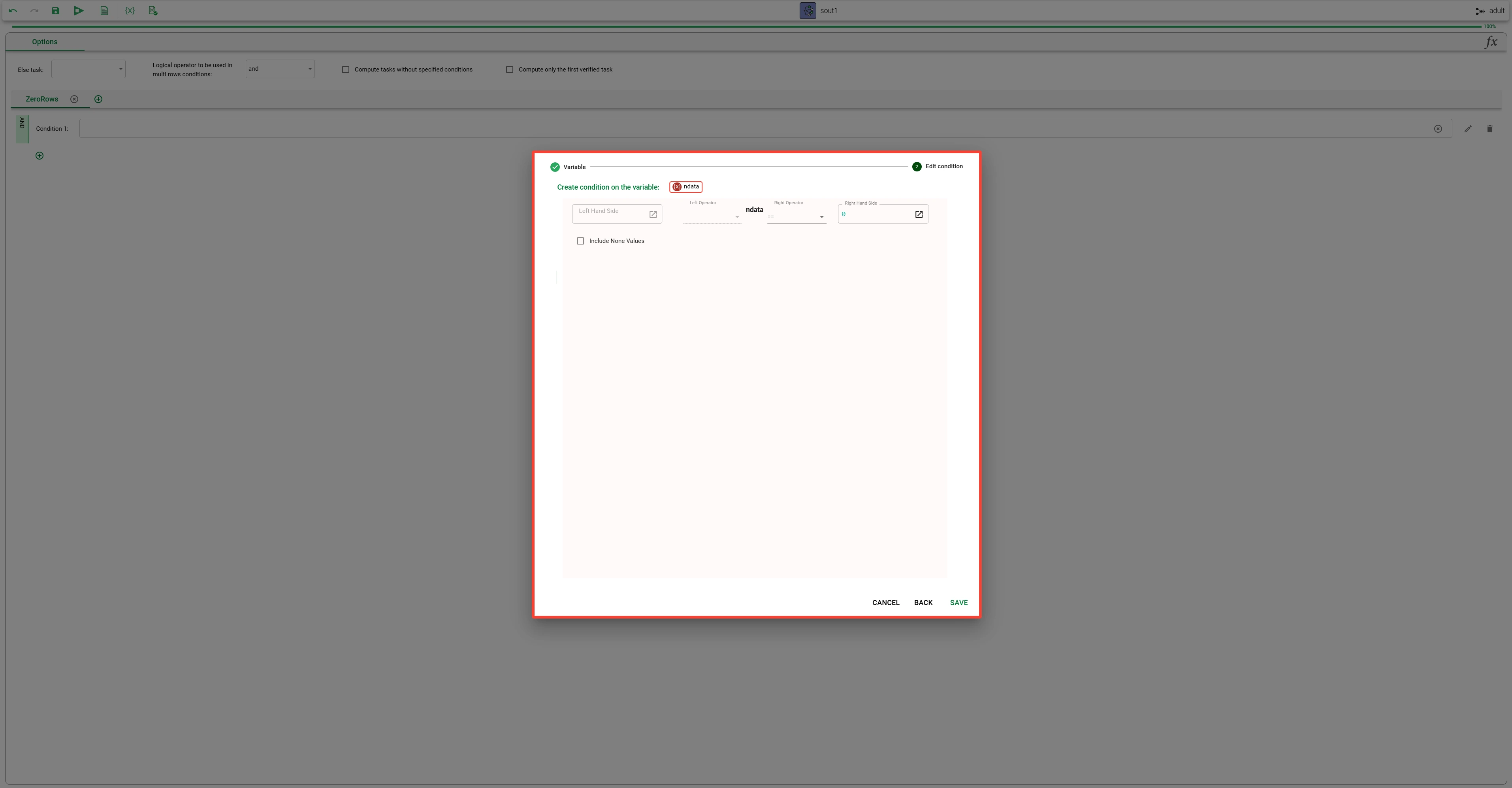
In the first step, select the Variable ndata and click Next.
In the ordered condition panel configure the condition
@ndata == 0and click Save.
In the Rule selector below, click the Plus button again and from the appearing pop-up select the outgoing task LowRows and click Add.
In the added tab, click the Plus button to add a condition row. Then press the Edit icon at the end of the condition row to open the Condition Wizard.
In the first step, select the Variable ndata and click Next.
In the ordered condition panel configure the condition
@ndata < 10and click Save.Now close the task.
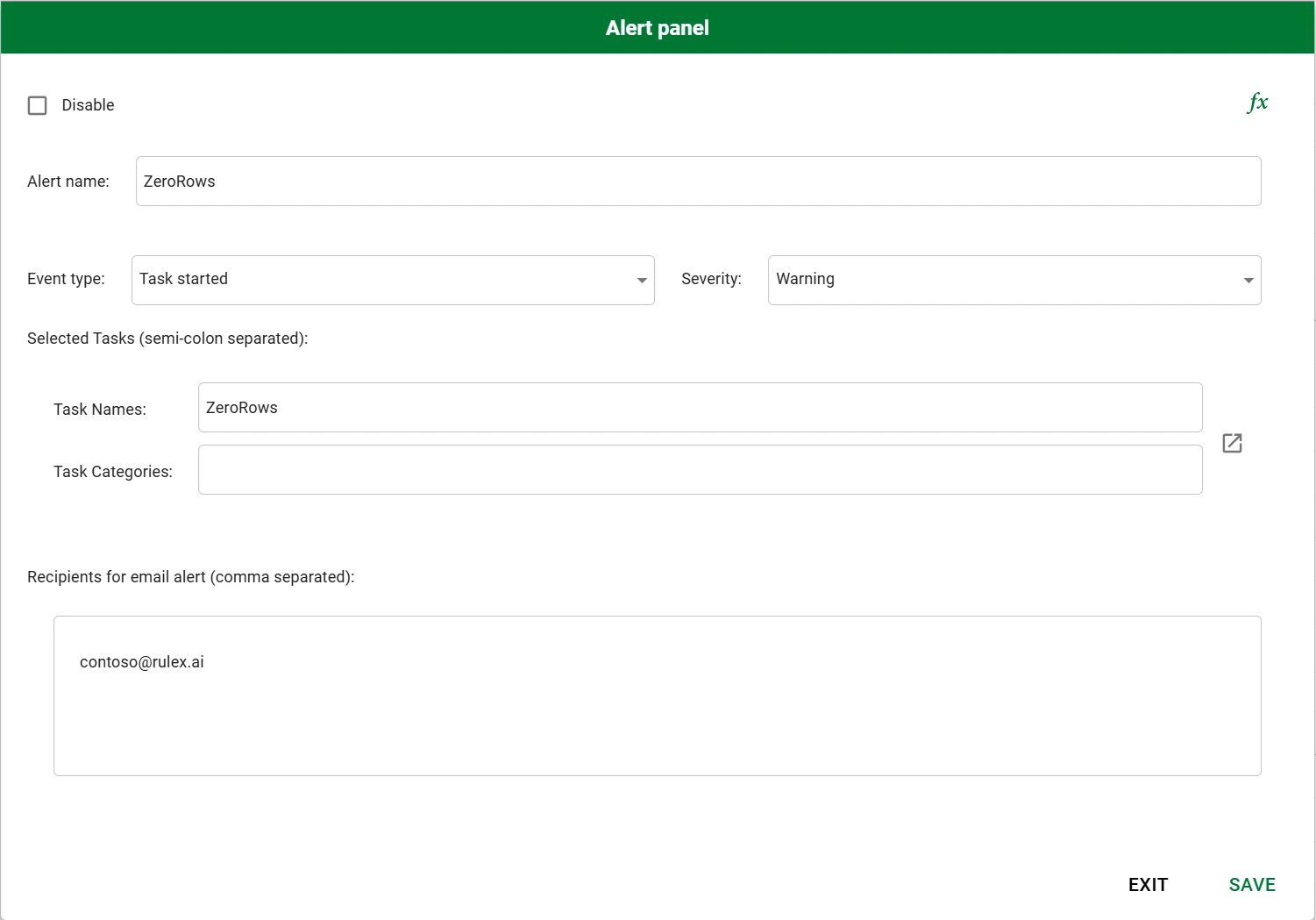
In the Alert manager, configure an alert on Task start for the task ZeroRows to warn the user by email if the task is computed and not skipped.
Select the Select Outputs task and click the Compute onwards button on the toolbar.
The EnoughRows task is computed while the other two appear as skipped, according to the variable condition evaluation. If a subsequent Concatenate task merges ZeroRows, LowRows, and EnoughRows, according to the default skip policy Skip neighbors, it is still computed, always resulting in a final Data Manager with at least
10rows.